








Introduction
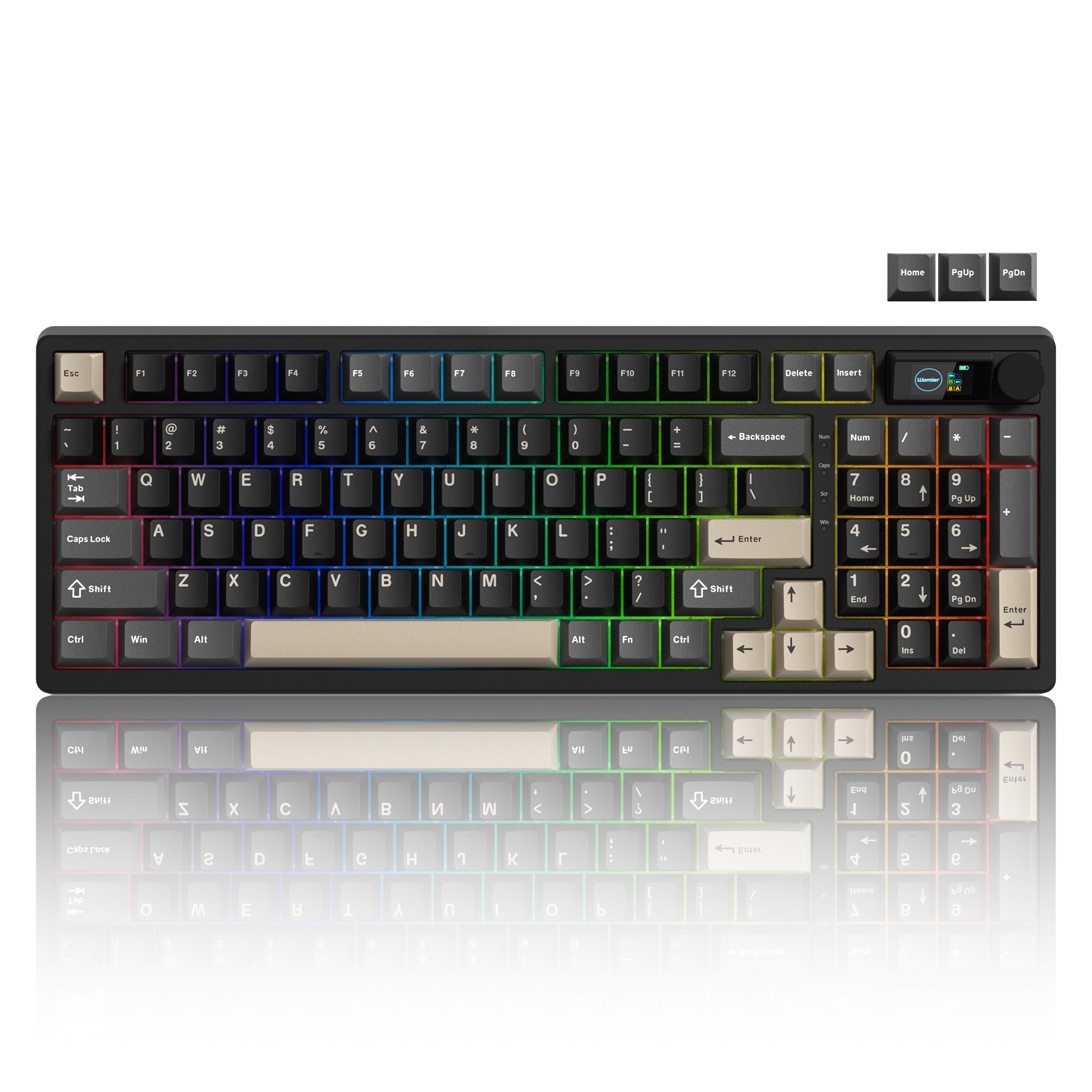
The modular TKL Womier DUO87 keyboard natively supports the open-source VIA web configurator, which works seamlessly on both Windows and macOS with identical operation steps. No complicated firmware flashing is required. Users can remap every key, record custom macros, set multi-system layout layers and adjust full RGB backlight entirely within the browser. Most users fail to detect their keyboard on usevia.app mainly because the exclusive JSON profile for DUO87 must be downloaded and imported manually.General Pre-Requisites (Works for Both Windows & Mac)
General Pre-Requisites (Works for Both Windows & Mac)
1.VIA only works under wired connection mode; wireless/Bluetooth cannot be used for configuration.
2.Only use the original USB-A to Type-C cable included in the box. Charging-only cables cannot transfer data.
3.Plug the keyboard directly into the rear native USB port of your computer. Do not use front panel ports, hubs, docking stations or extension cords.
4.VIA cannot auto-recognize DUO87. Download the mandatory JSON file first. Download link for DUO087 VIA Support file: https://womierkeyboard.com/products/womier-duo87-mechanical-keyboard-with-detachable-smart-display-for-win-mac Scroll down to the Downloads section and save the JSON file to your deskto

Universal Step-by-Step Setup Guide (Same Steps for Windows & Mac)
1.Connect DUO87 to your computer’s rear native USB port with the original cable, wait 5 seconds for full power-up.
2.Launch Chrome or Edge browser and visit https://usevia.app.

3.Click the gear Settings icon on the top bar, then turn on the switch "Show Design tab".

4.Switch to the new Design tab, click "Load Saved JSON" and select the DUO087 file saved on desktop.

5.Navigate to the Configure tab, click the blue "Authorize Device" button and select Womier DUO87 from the pop-up list. Once the interactive virtual keyboard appears, all customization functions are ready to use.

Core VIA Functions (Compatible with Windows & Mac)
1. Full Key Remapping
Click any key on the virtual layout, then pick target functions from the right panel: letters, numbers, media hotkeys, system shortcuts, Ctrl/Cmd/Alt modifier keys. Changes take effect instantly with no manual saving needed.

2. Custom Macro Recording
1.Switch to the Macros tab at the top menu.
2.Click Add Macro to create an empty macro slot.
3.Hit Record and input your shortcut sequences, adjust delay time between keystrokes as needed.
4.Save the macro and bind it to any physical key on the Configure page.

3. Four Independent Layout Layers
- Layer 0: Default Windows base layer
- Layer 1: Windows FN secondary layer
- Layer 2: Default Mac base layer
- Layer 3: Mac FN secondary layer You can set custom hotkeys inside VIA to switch between Windows and Mac layouts in one click.

4. Full RGB Backlight Customization
Enter the Lighting tab to adjust global brightness, animation speed, single-key color and full keyboard color palette. Multiple built-in lighting modes are available, including static, wave, breathing and reactive typing light. All lighting settings are permanently stored on the keyboard PCB.

5. Configuration Backup & Factory Reset
- Backup: On the Configure page, select Export to save your custom layout as a .via file for later restoration.
- Hardware reset: Hold FN + Caps Lock on the keyboard for 3 seconds to clear all personalized settings.

Common Troubleshooting
1. VIA cannot detect DUO87
- Confirm the exclusive DUO087 JSON file has been uploaded in the Design tab
- Replace the cable and plug into rear native USB port
- Hold FN + Caps Lock for 3s to reset the keyboard, then refresh usevia.app
- Disable browser ad-block extensions which block USB device access
2. Custom settings won’t save
- Close other keyboard driver software to avoid conflicts
- Do not use any USB hubs or extension cables
- Clear browser cache and reload the VIA webpage
3. Abnormal RGB backligh
- Perform hardware factory reset (FN + Caps Lock held for 3 seconds
- Re-adjust lighting effects in the Lighting tab
- Flash the latest official firmware via the Design tab
Final Note
If you still encounter recognition or customization issues after following all steps, capture screenshots or short operation clips and send them to support@womierkeyboard.com for one-on-one technical support.
